


DELIVER TO YOUR DOOR OR IN-STORE PICKUP*
LEASE TO OWN WITH NO CREDIT NEEDED*
- Details
- Reviews (0)
- Q & A
Description
Please note that this link contains a mix of 713 and 726 chips.
Product Description
OS: Android 14
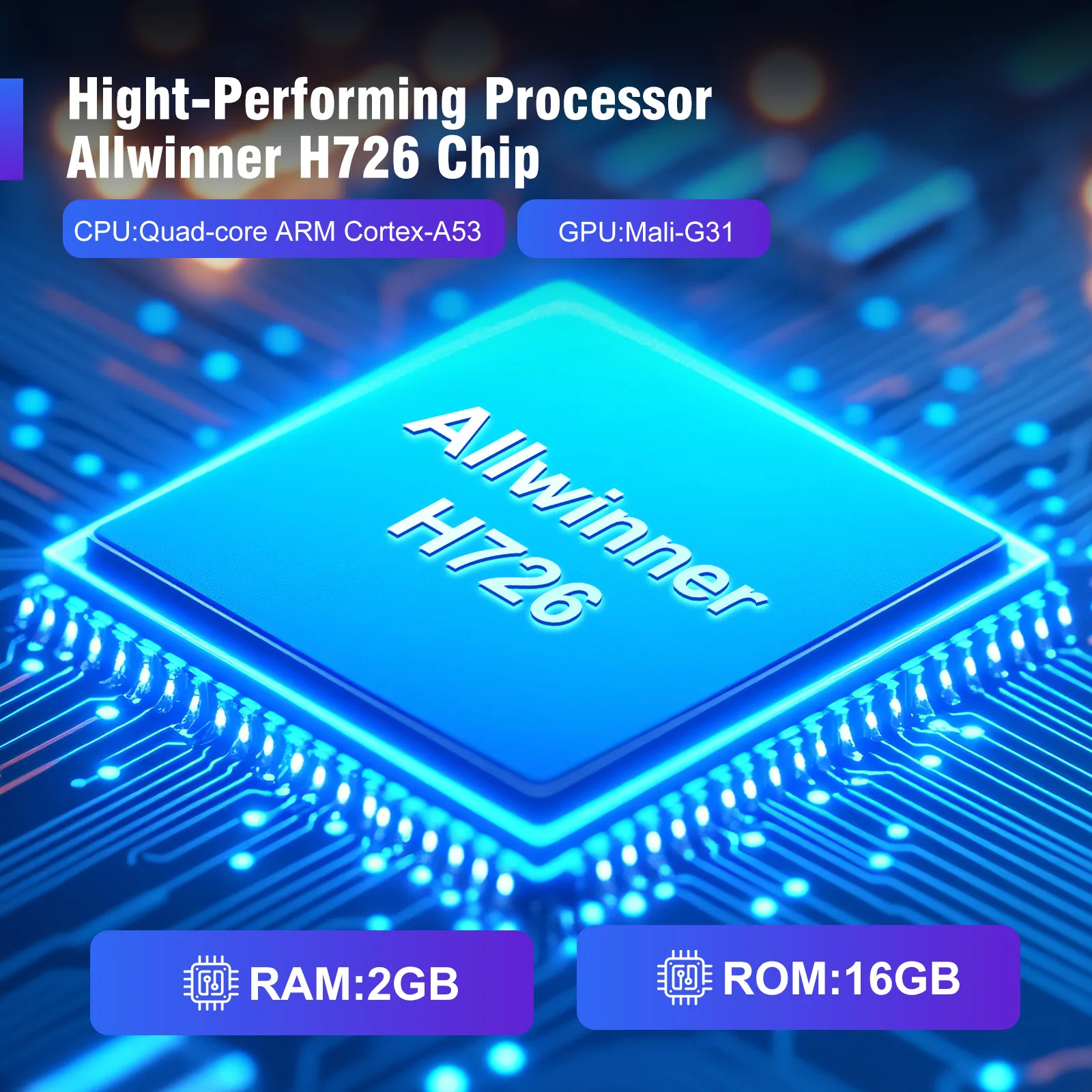
CPU: Allwinner H726 Quad-core ARM Cortex-A53
GPU: Mali-G31 supports OpenGL ES3.2,Vulkan 1.1,and OpenCL2.0
RAM & ROM: 2GB + 16GB
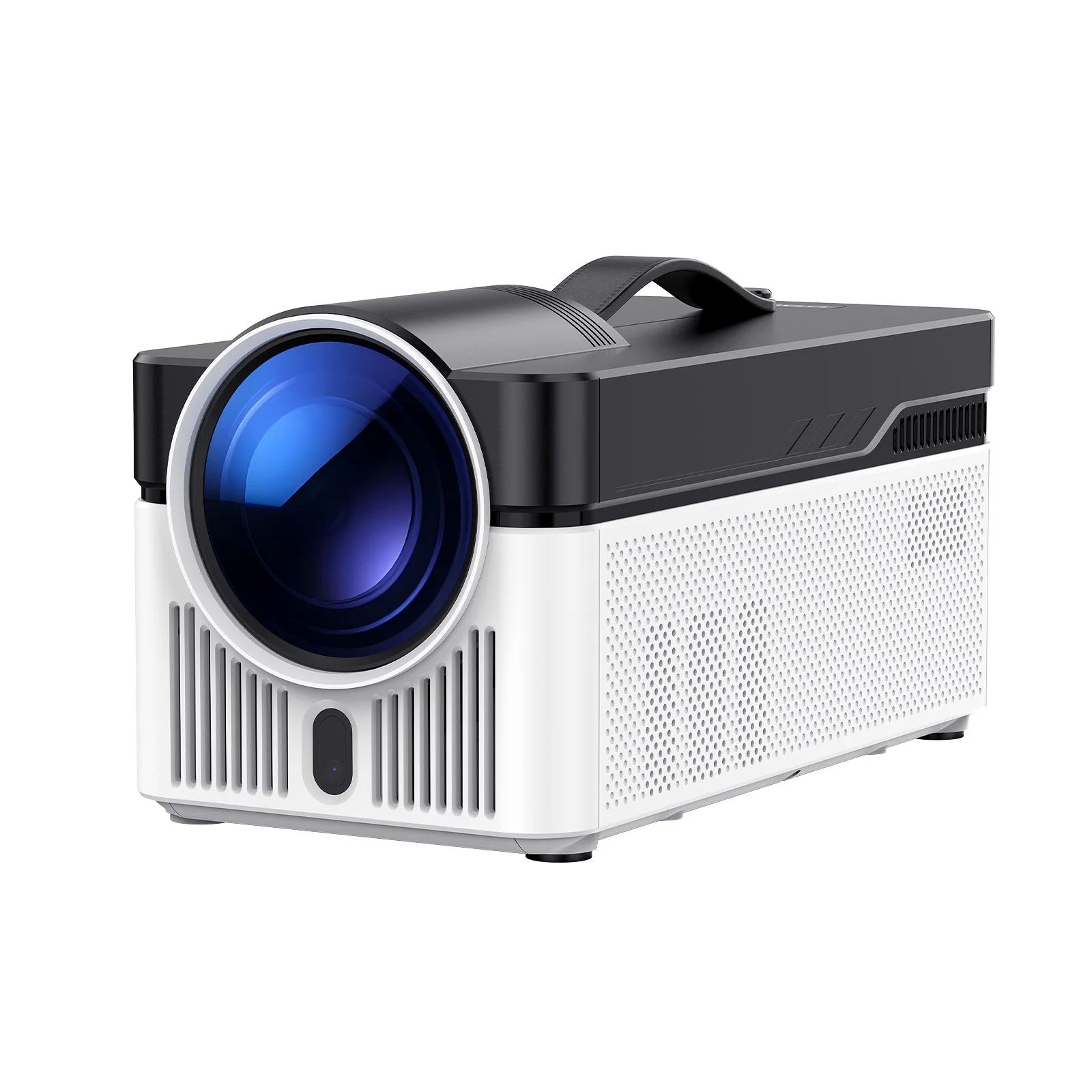
Important Note: if you order this projector, you will receive the item as the following picture.
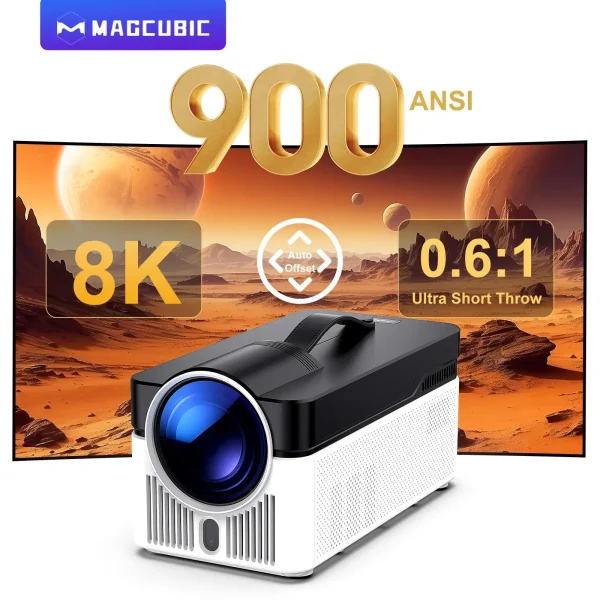
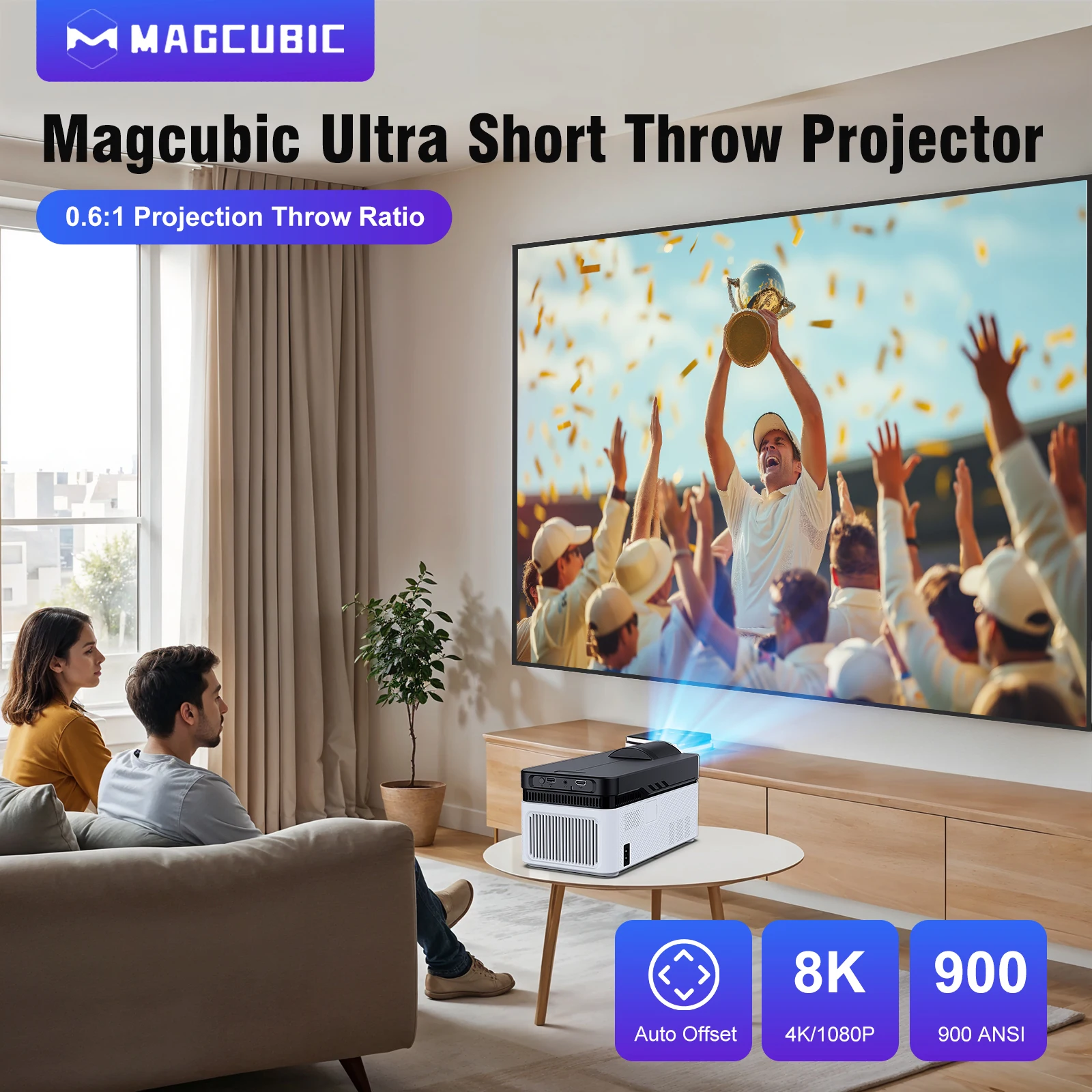
Magcubic Ultra Short Throw Projector
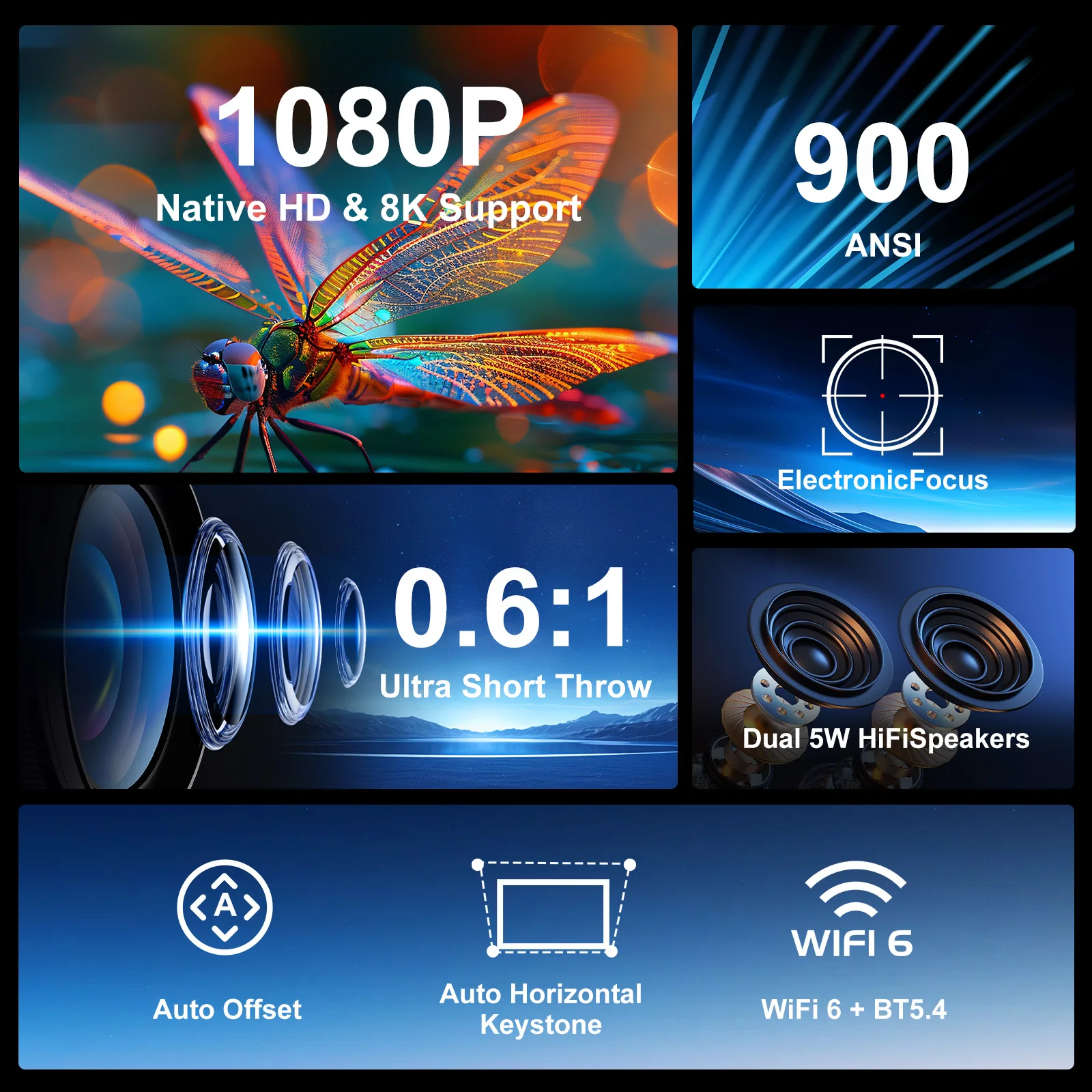
0.6:1 Projection Throw Ratio & Auto Offset & 1080P & 4K & 8K & 900 ANSI
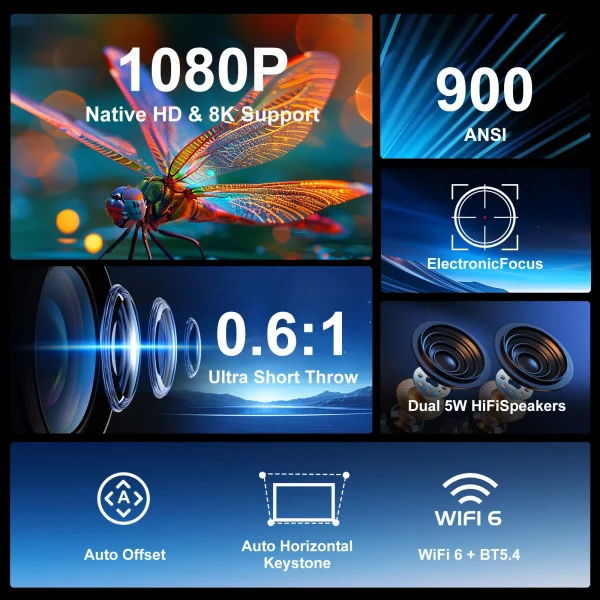
Auto Offset & 1080P & 8K & 900 ANSI & WiFi 6 & BT5.4
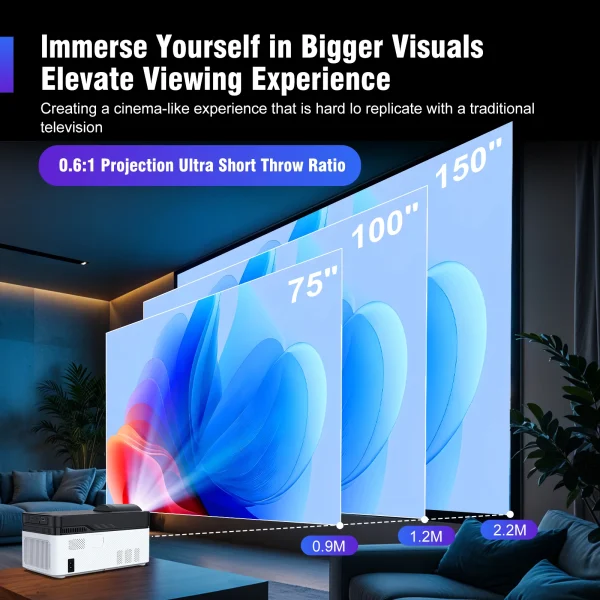
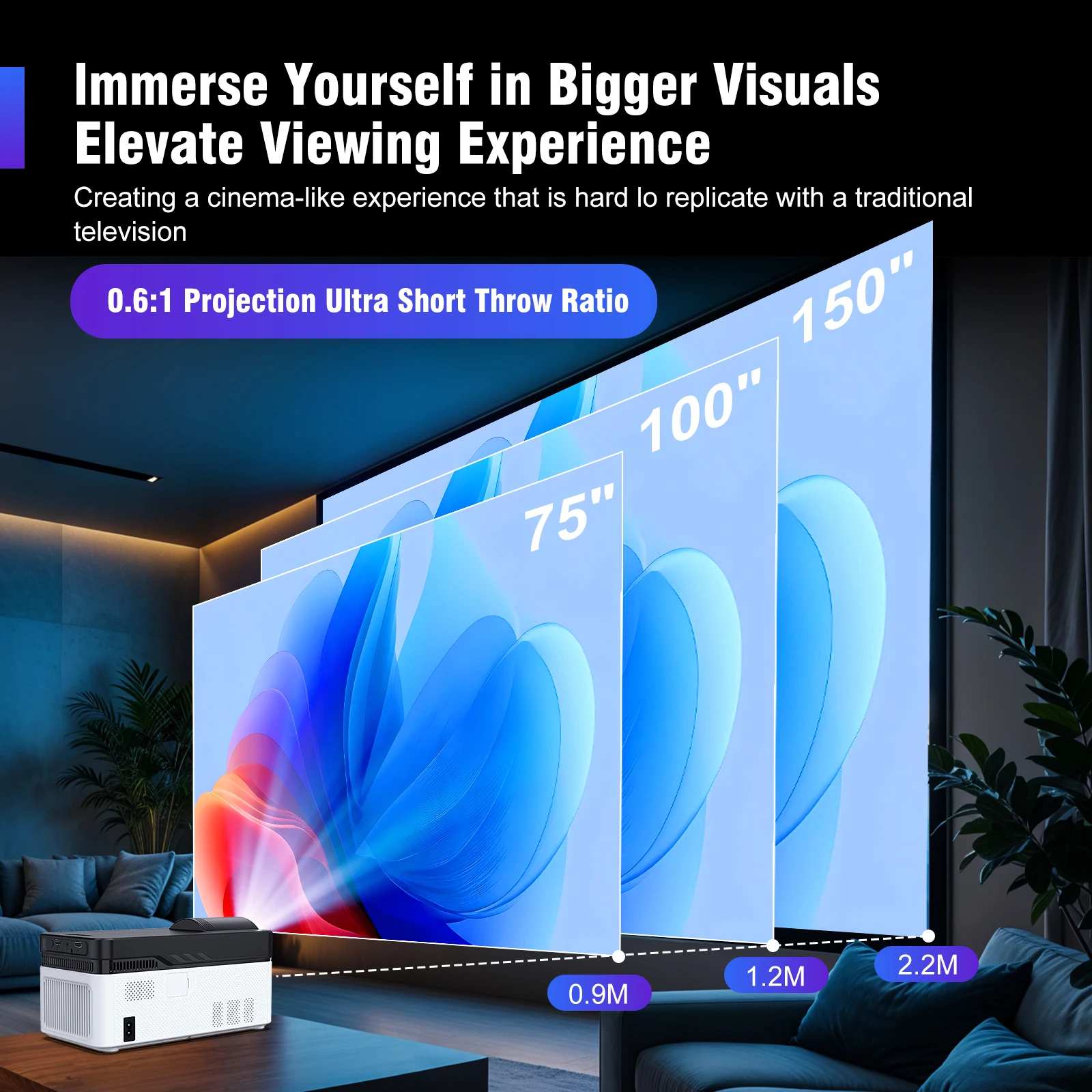
lmmerse Yourself in Bigger Visuals
Elevate Viewing Experience
Creating a cinema-like experience that is hard lo replicate with a traditional television-0.6:1 Projection Ultra Short Throw Ratio
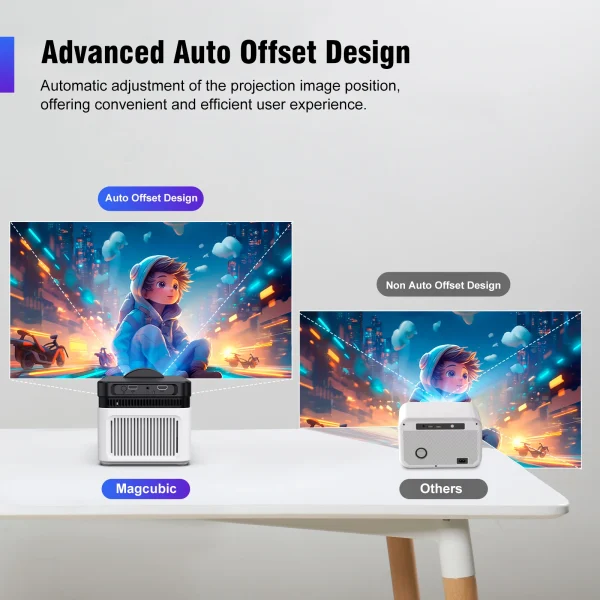
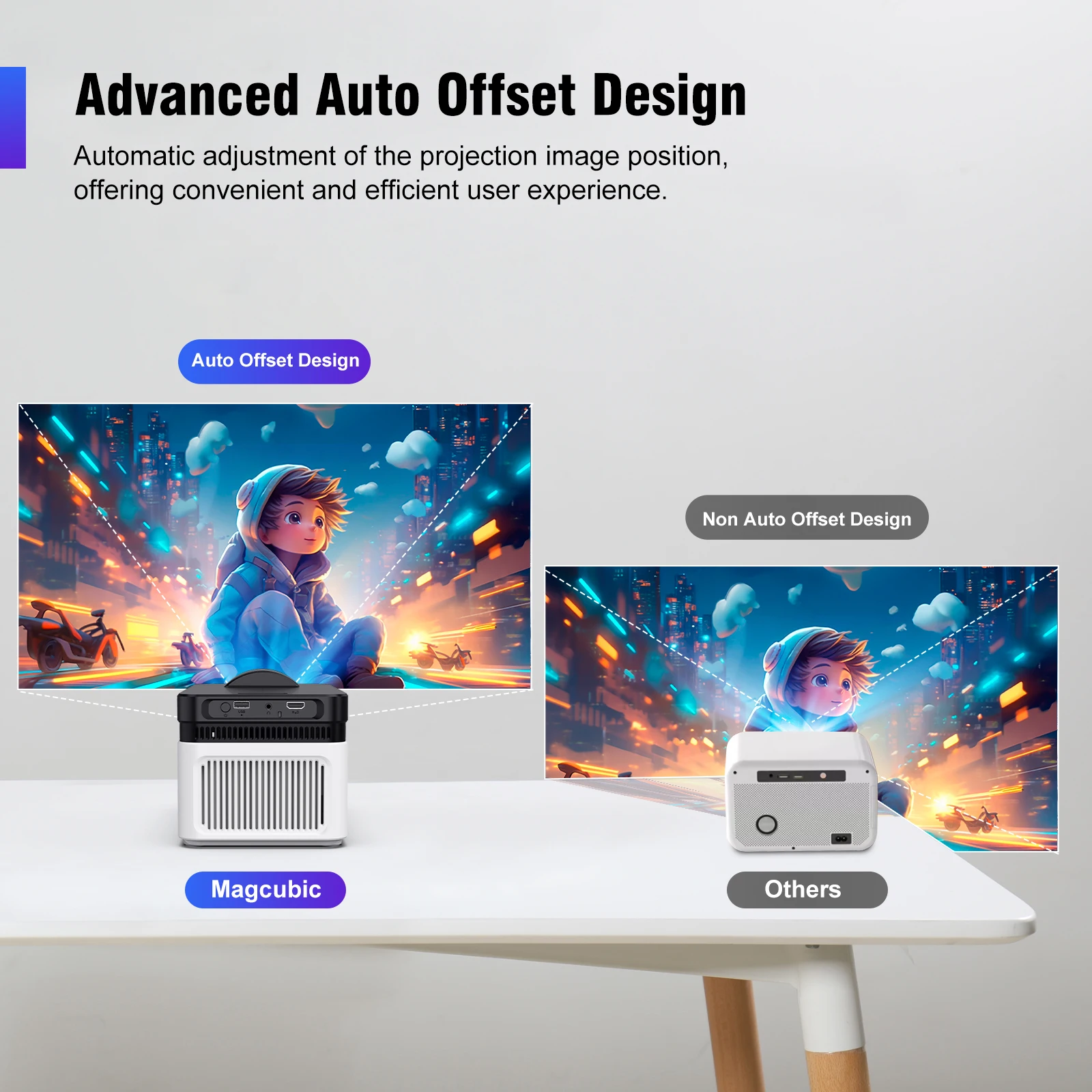
Advanced Auto Offset Design
Automatic adjustment of the projection image position, offering convenient and efficient user experience.
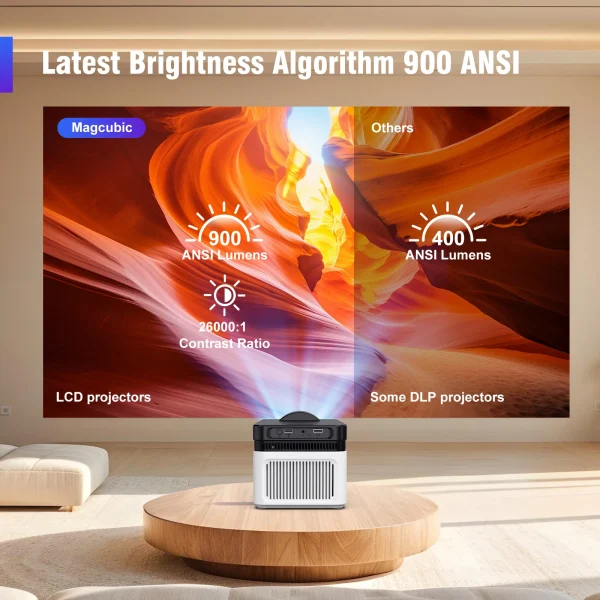
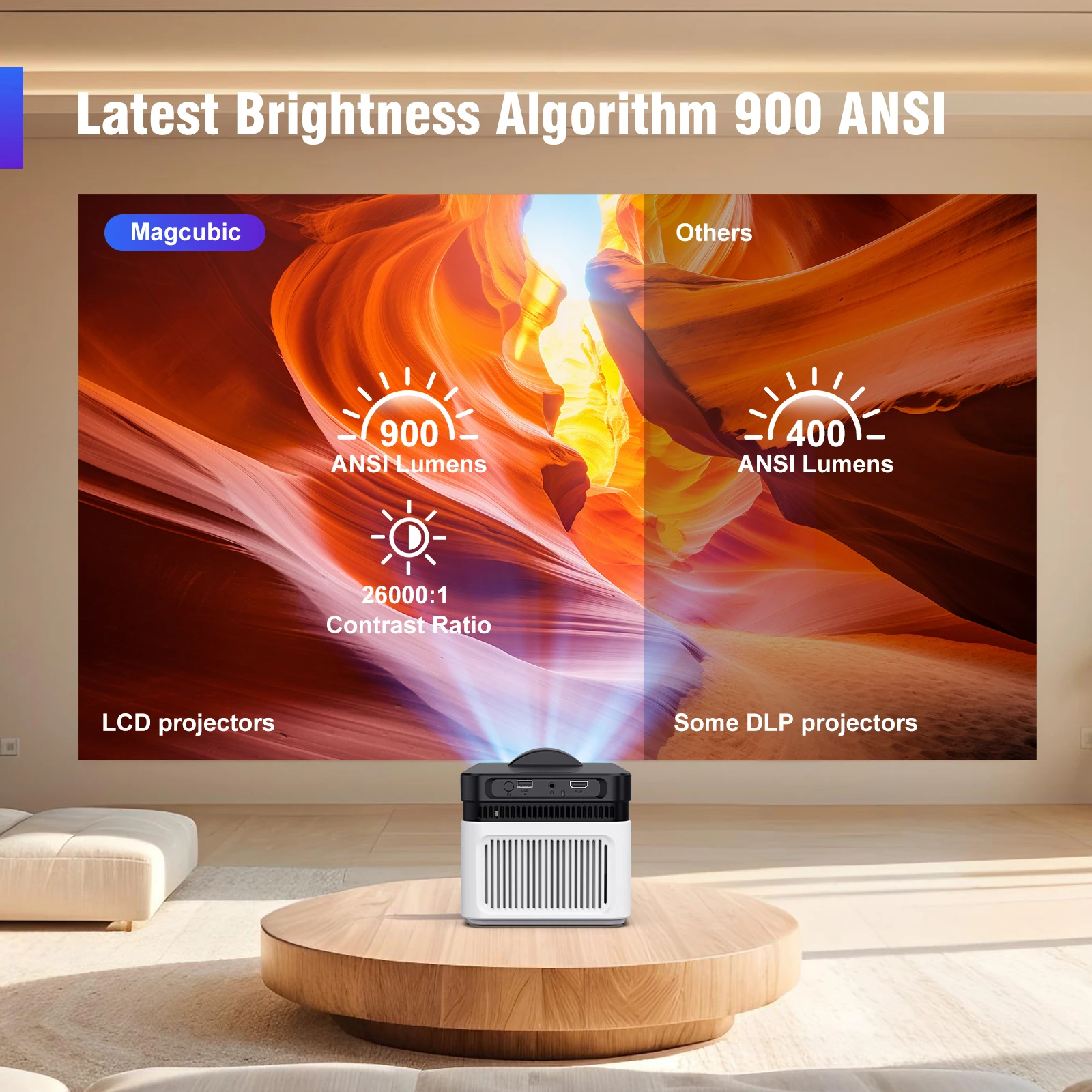
Latest Brightness Algorithm 900 ANSI
900 ANSI & 26000:1 Contrast Ratio
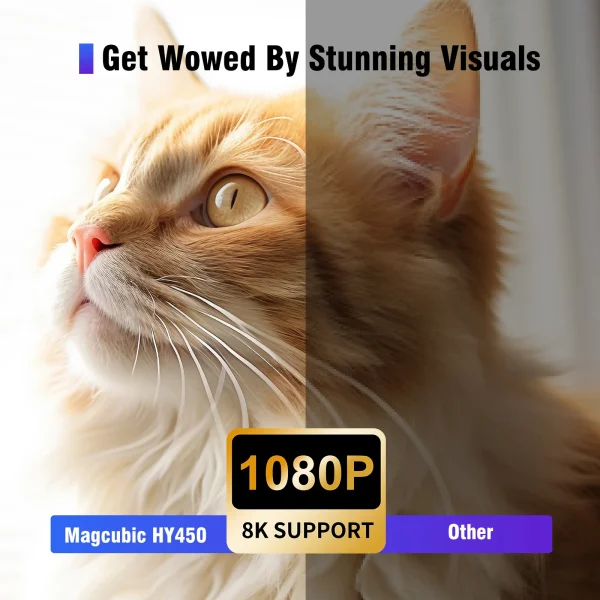
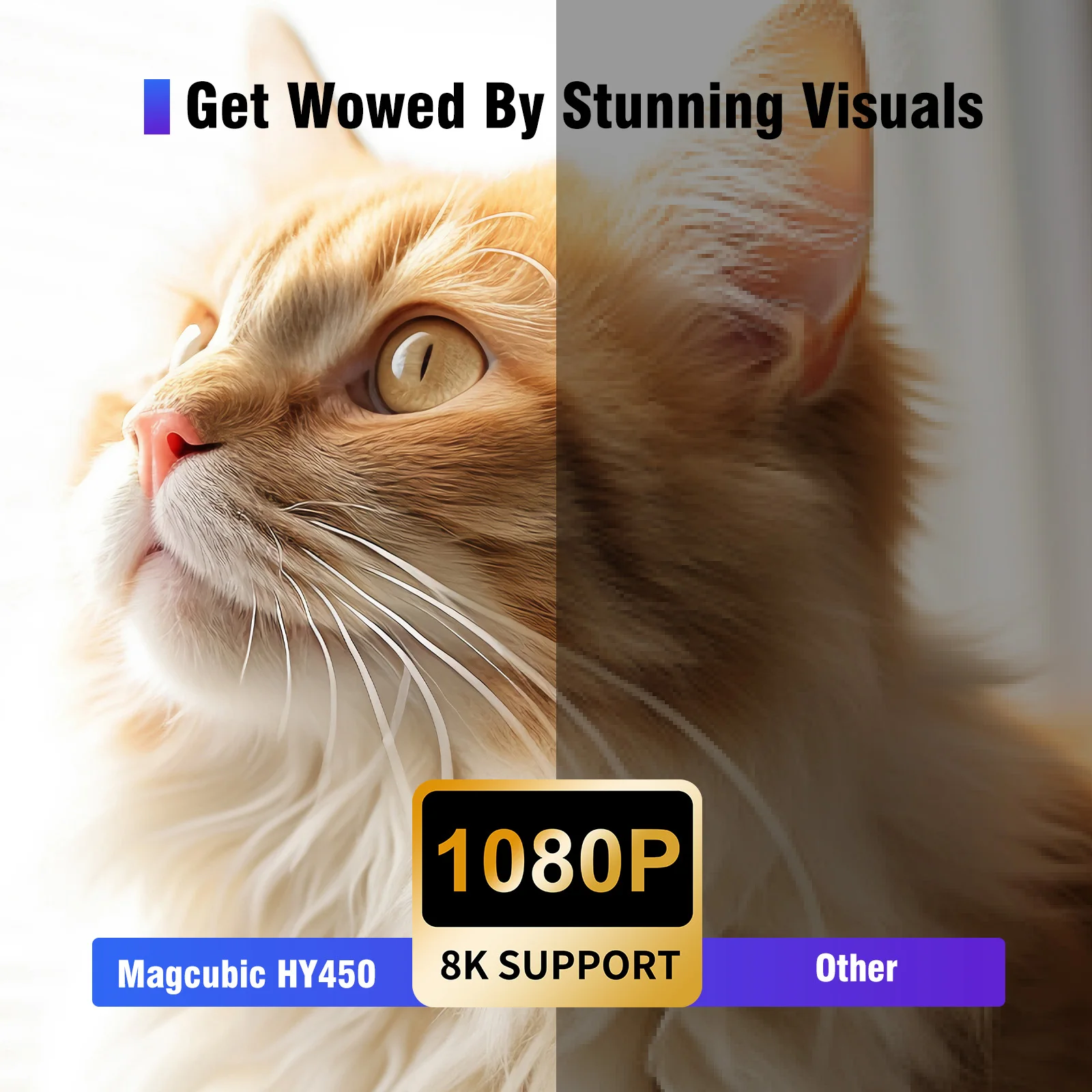
Get Wowed By Stunning Visuals
1080P Native HD/4K/8K Support
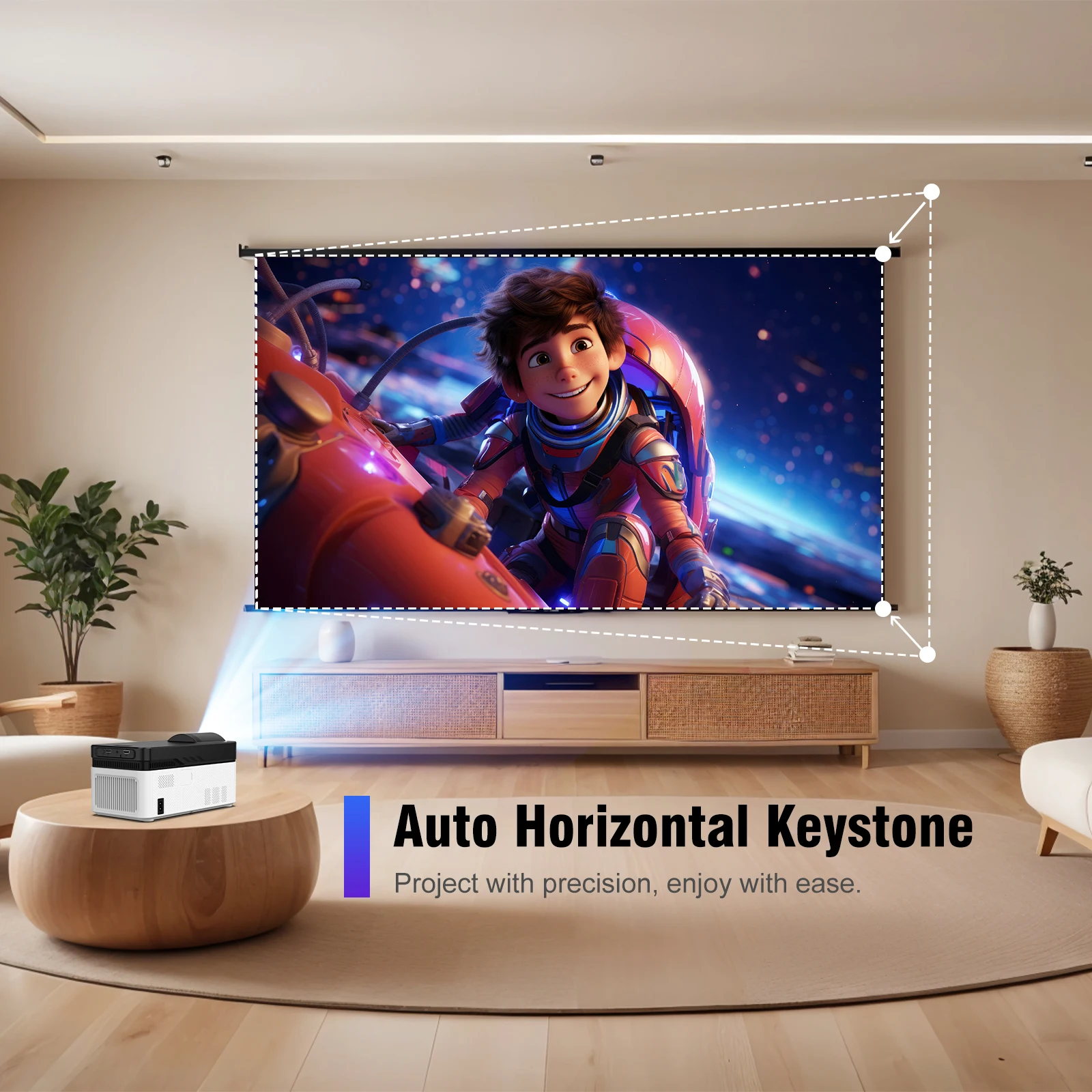
Auto Horizontal Keystone
Project with precision, enjoy with ease
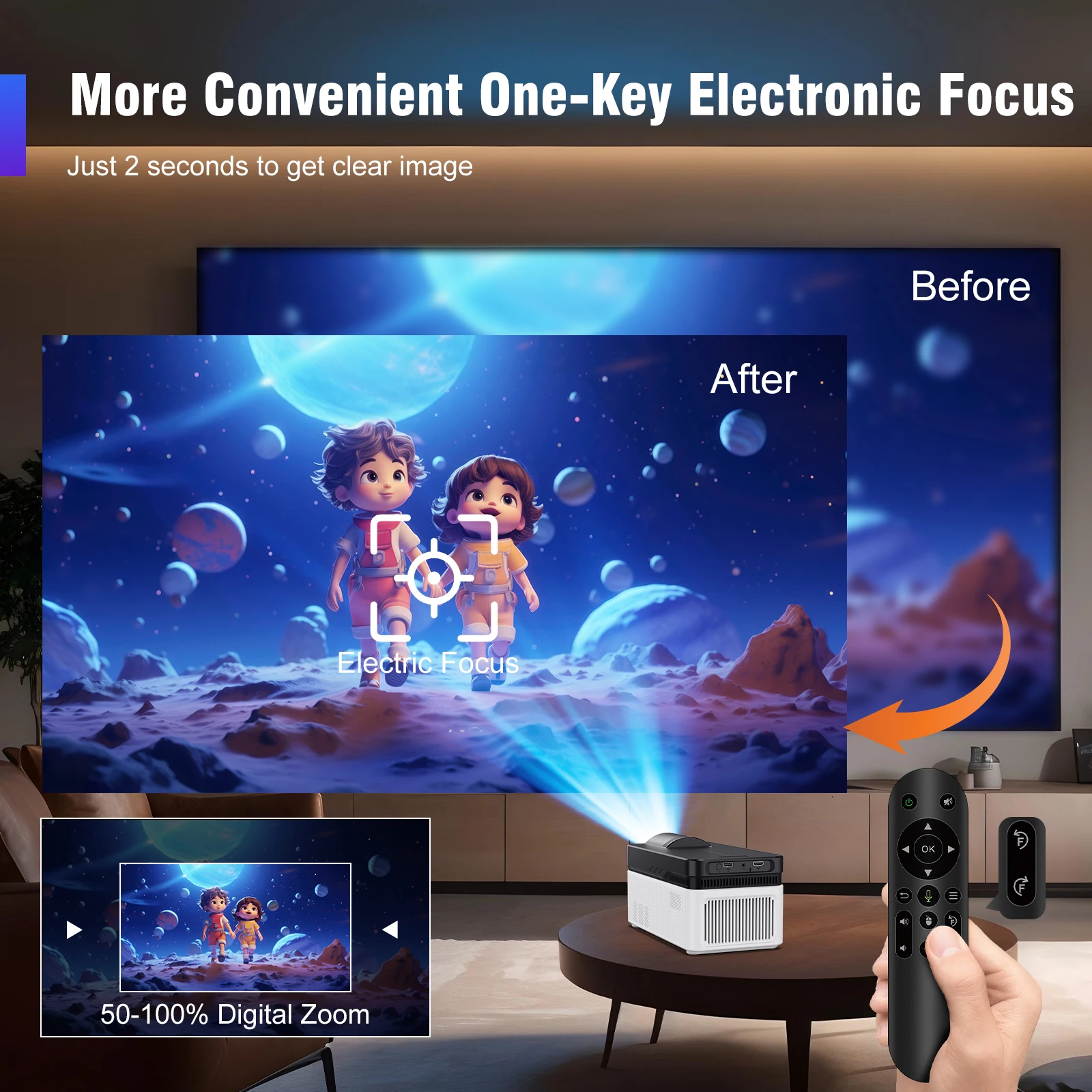
More Convenient One-Key Electronic Focus
Just 2 seconds to get clear image
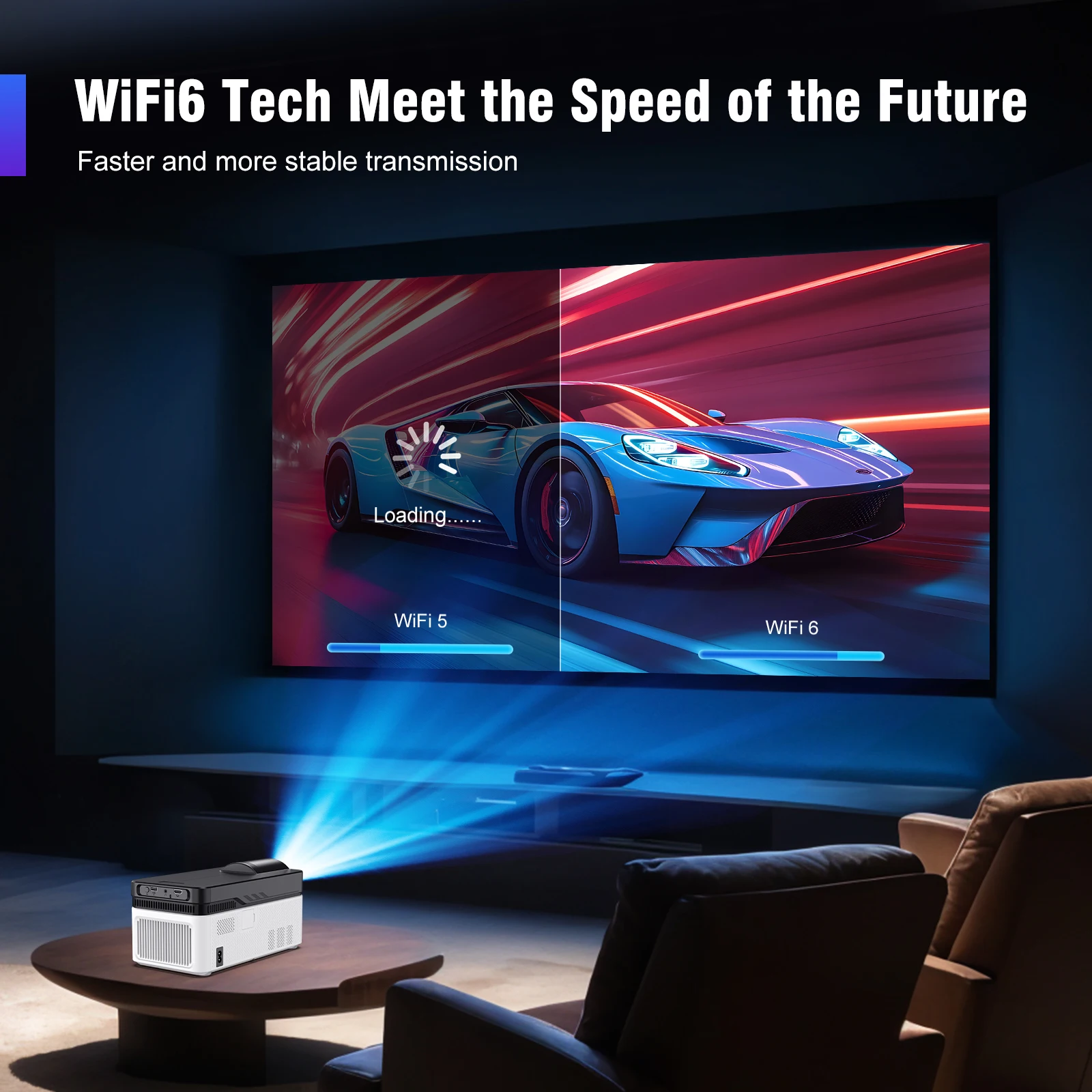
WiFi6 Tech Meet the Speed of the Future
Faster and more stable transmission
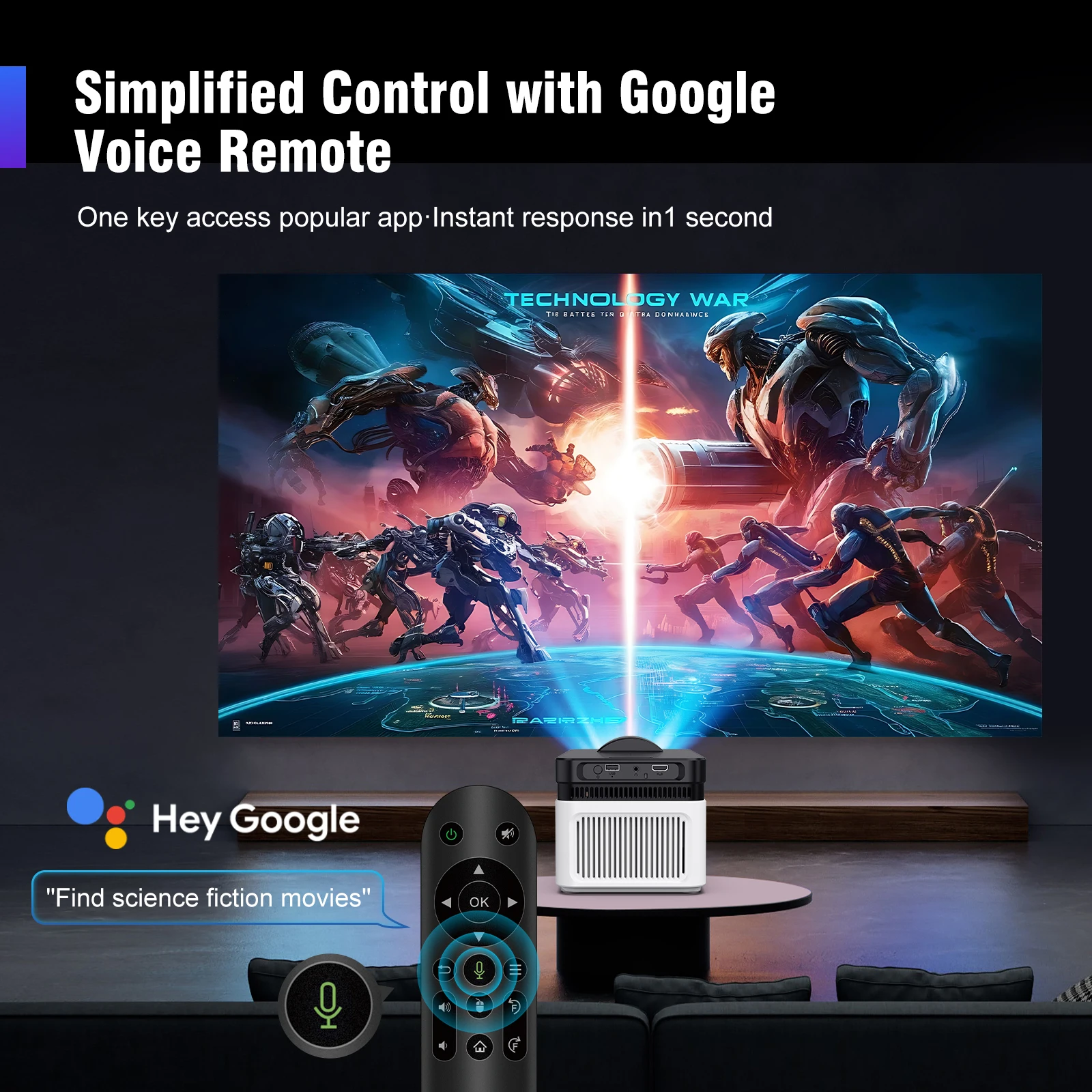
Simplified Control with Google Voice Remote
One key access popular app·Instant response in1 second
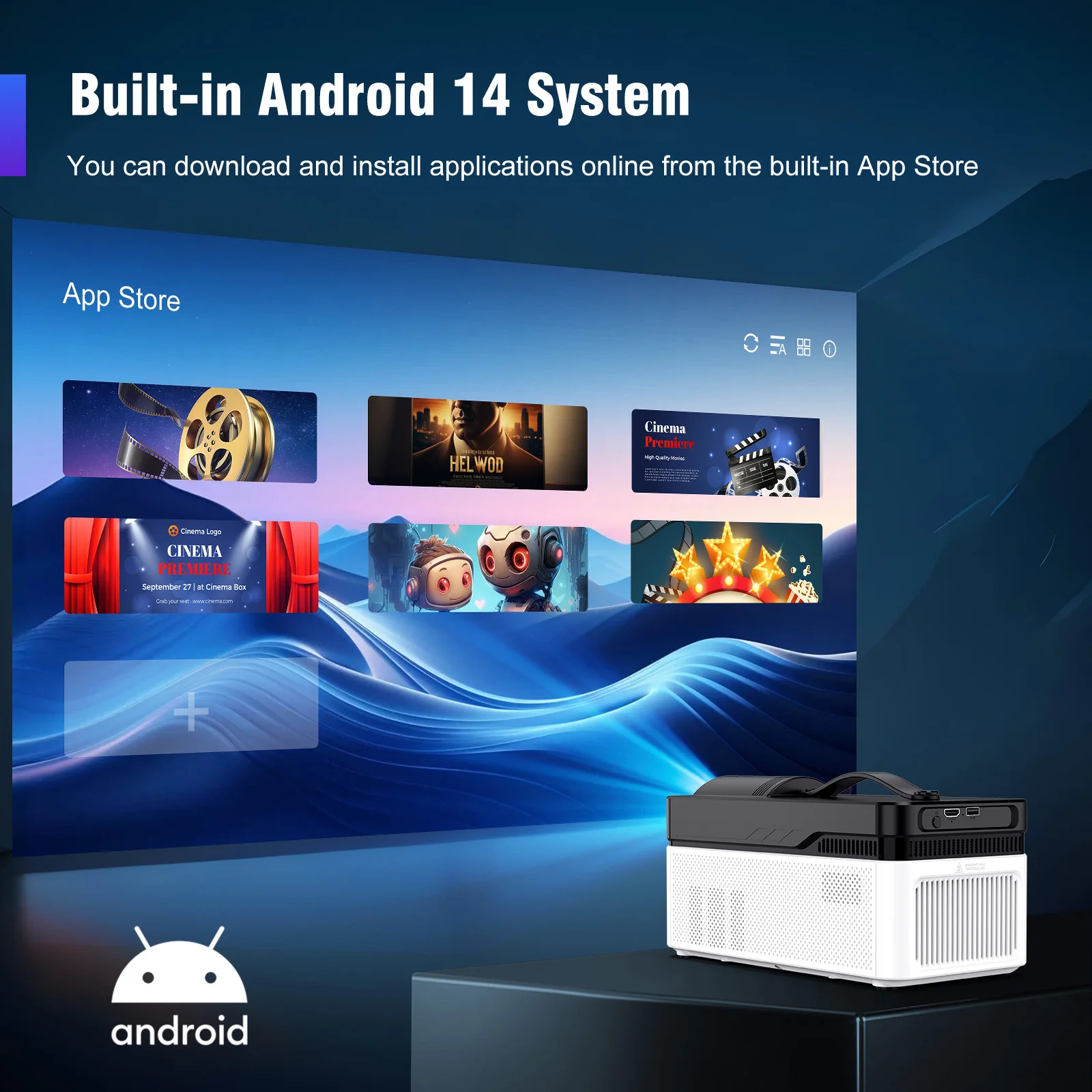
Built-in Android 14 System
You can download and install applications online from the built-in App Store
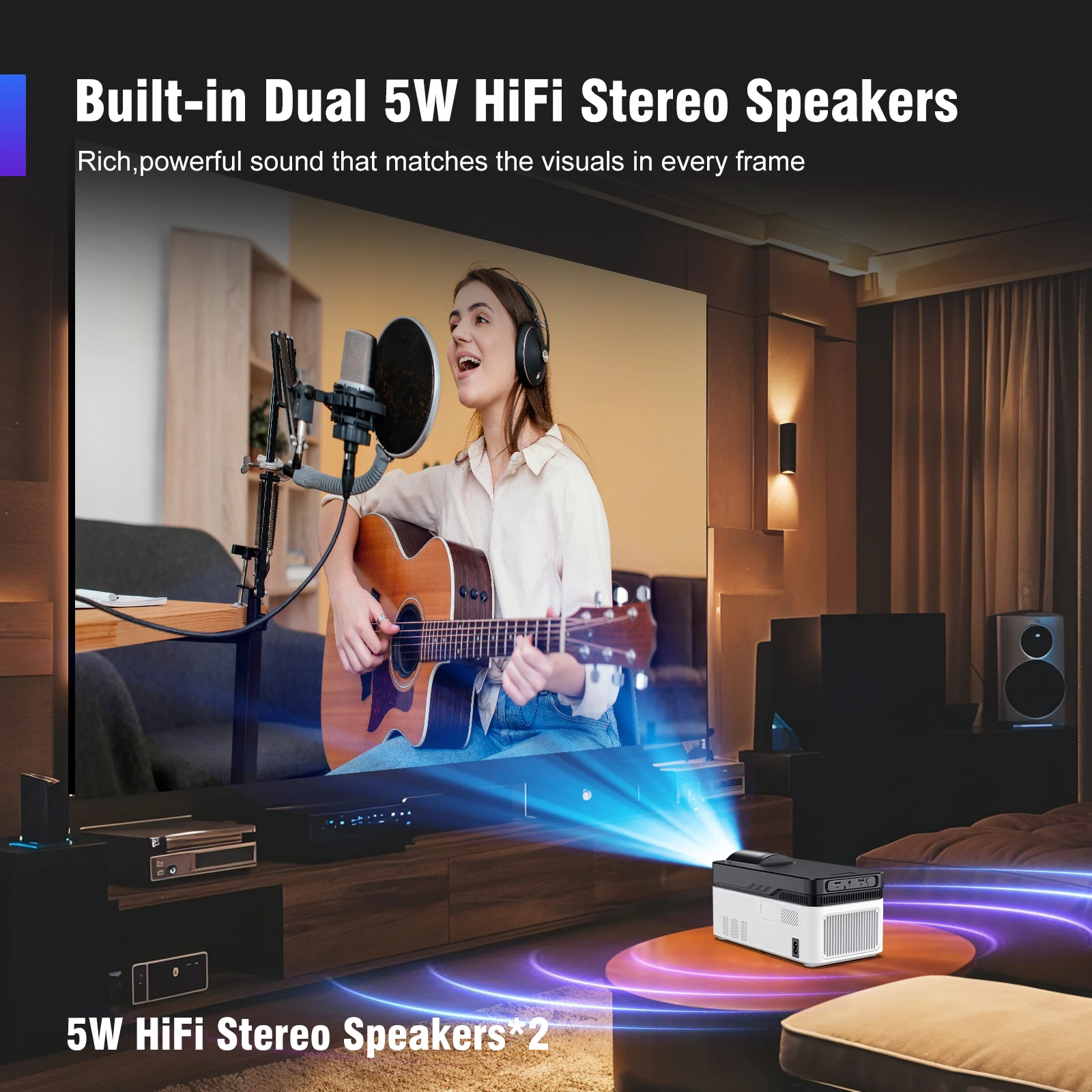
Built-in Dual 5W HiFi Stereo Speakers
Rich, powerful sound that matches the visuals in every frame
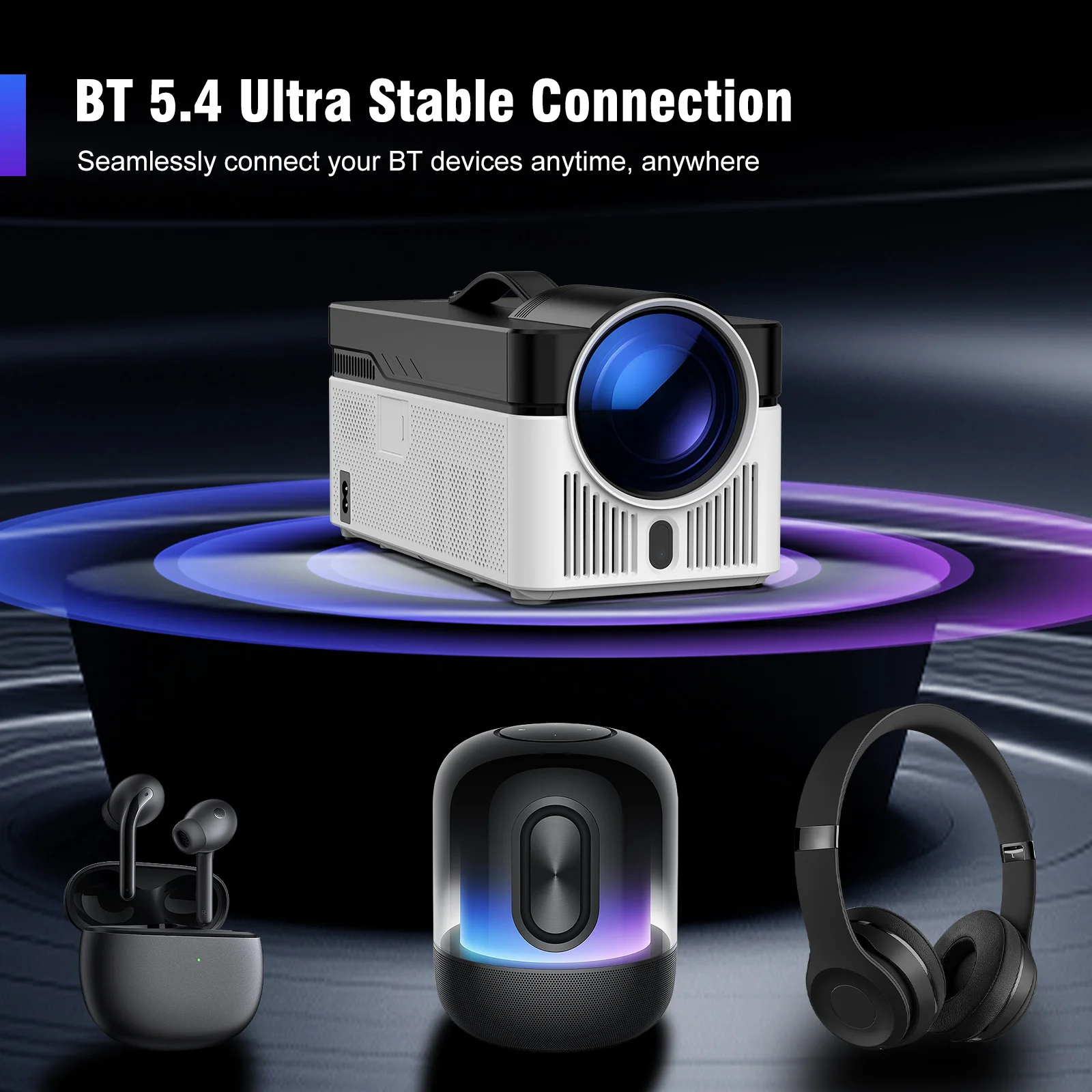
BT 5.4 Ultra Stable Connection
Seamlessly connect your BT devices anytime, anywhere
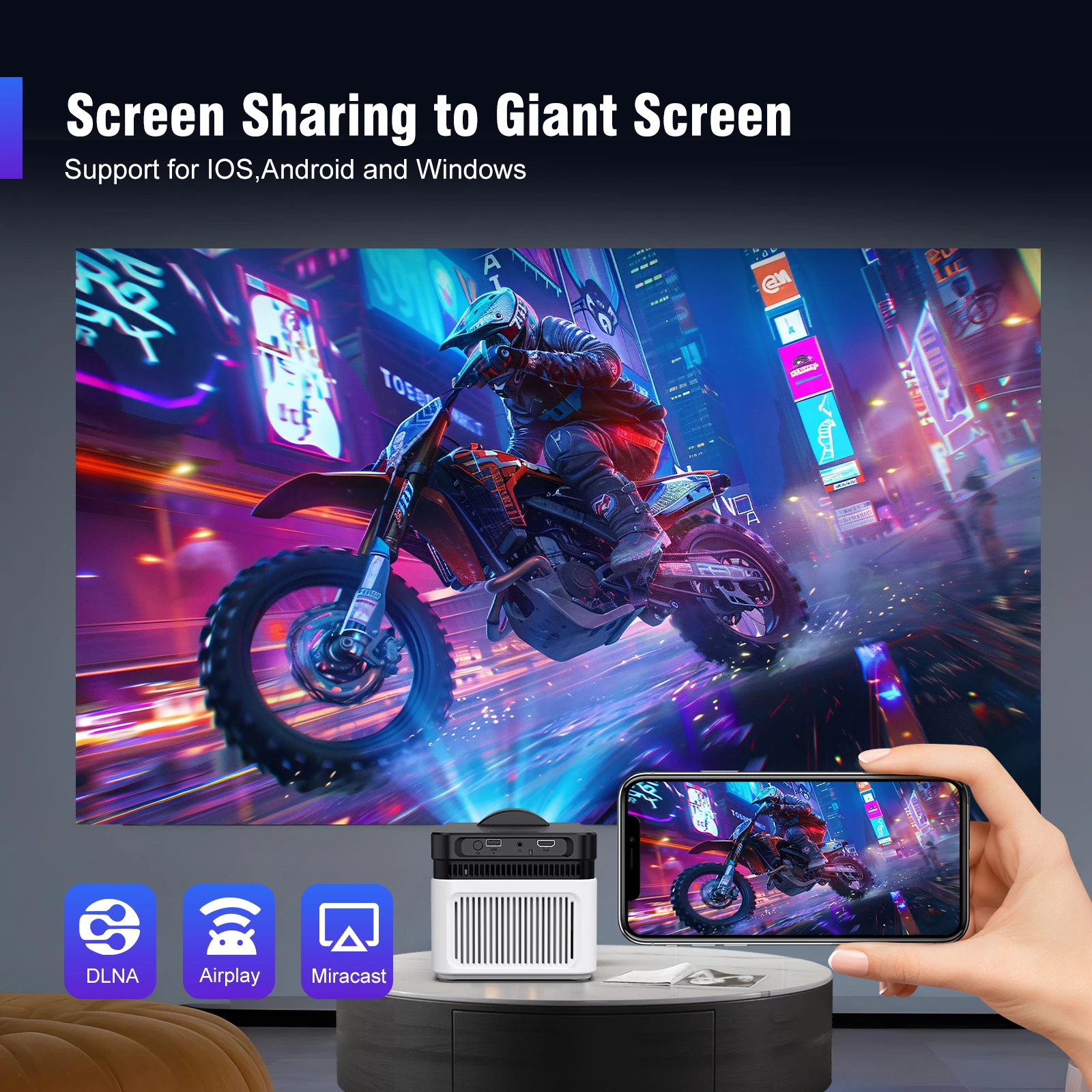
Screen Sharing to Giant Screen
High-Performing Processor Allwinner H726 Chip
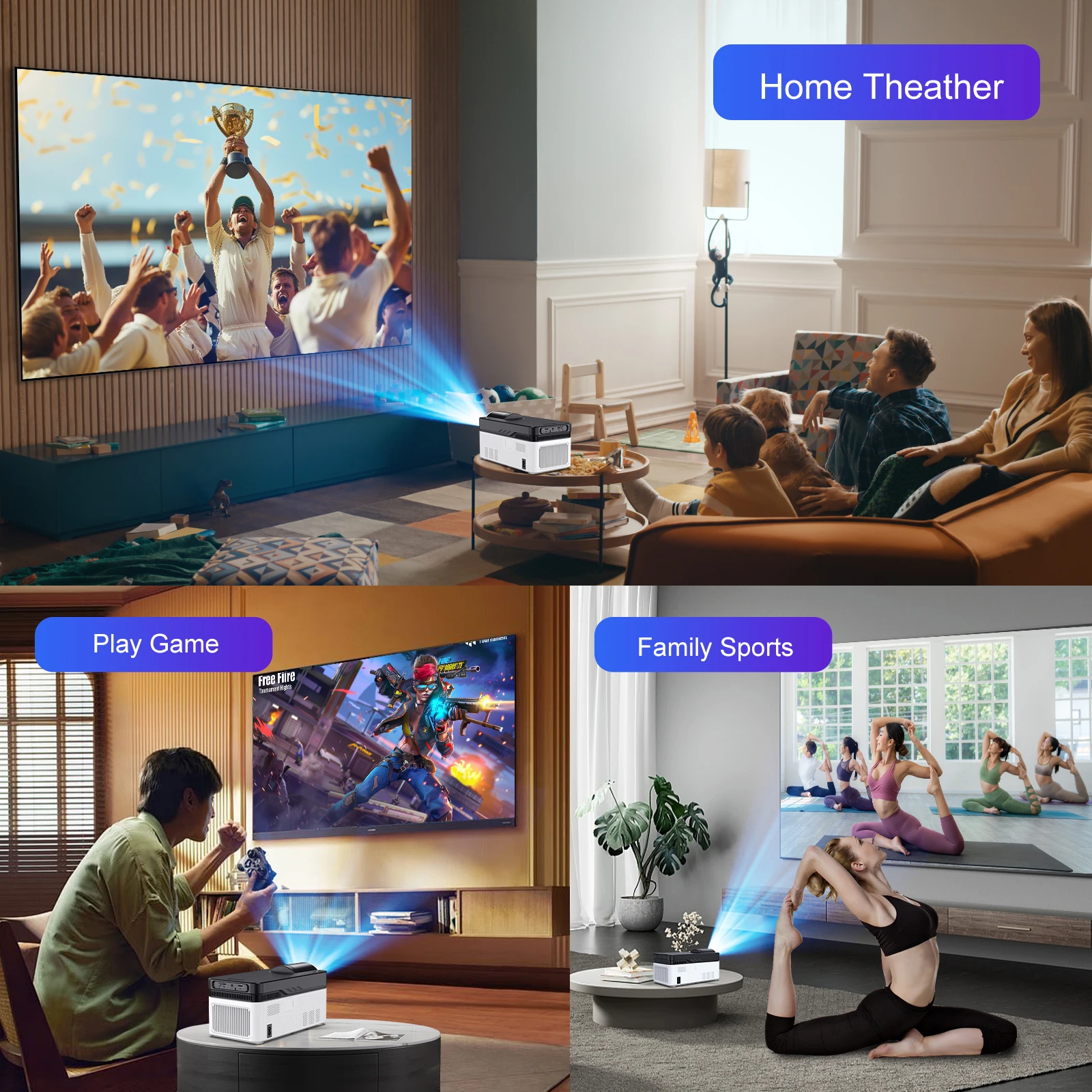
Home Theather & Play Games & Family Sports
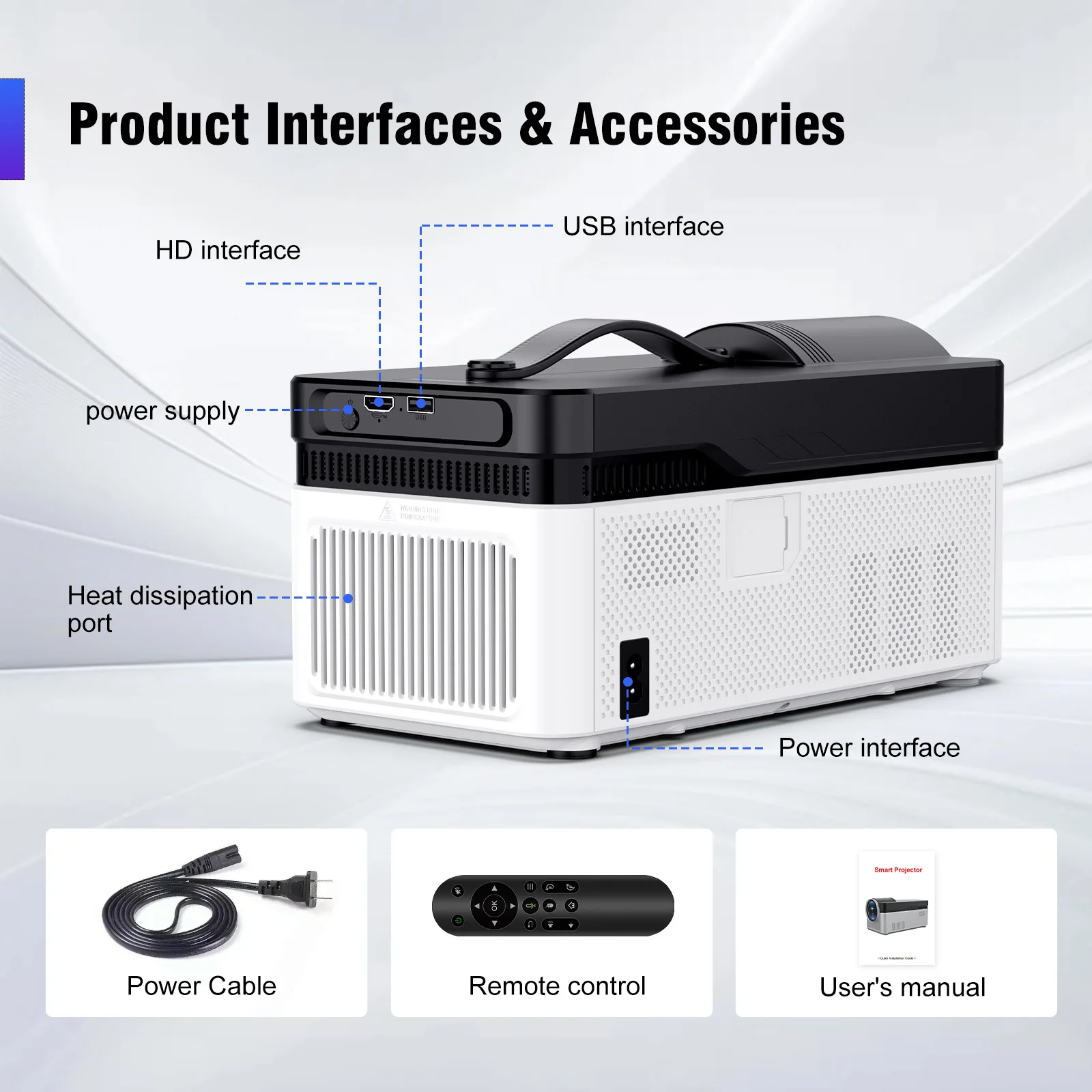
Product Interfaces & Accessories
Question & Answer
Q1: How Do I Upgrade the Firmware of HY450?
A: Go to Settings > System information > About devices > Online upgrade
Q2: How Do I Factory Reset the HY450?
A: Go to Settings > Other Settings > Restore factory settings
Q3: How Do I Zoom In/Out?
A: Go to Settings > Projection settings > Digital scaling
Q4: How Do I Manually Adjust the Keystone?
A: Go to Settings > Projection settings > Manual trapezoidal
Q5: How Do I Get the System Version of the HY450?
A: Go to Settings > System information > About devices > UI version
Q6: How Do I Connect BT Device?
A: Go to Settings > Bluetooth > Available devices
Q7: How to I activate HY450’s focus?
A: Press the “electronic focus” buttons on the remote control to manually adjust the focus.
Q8: What is HY450’s Projection Distance?
A: The distance between the projector and the projection surface must be a minimum of 0.5 m and a maximum of 2.1m. This ensures a projection image between 40″ and 200″.
Q9: How Do I Pair the Remote with HY450?
A: Try the following steps to see if they help:
1. During setup, press the “left” and “right” buttons of the remote control simul-taneously to pair and connect the projector.When pairing and connecting, the BT light will flash.
2. While pairing, point the remote at the infrared receiver.
3. Or go to Settings > Bluetooth > Available devices to search and pair.
Note: The distance between the remote and projector should not exceed 20cm.
Q10: What Should I Do If My HY450 Has No Sound?
A: Try the following steps to see if they help:
1. Hit the Volume Up/Down button on the remote control
2. Connect your HY450 to an external BT speaker via Settings > BT > Available devices
3. Factory reset the HY450 via Settings > Other Settings > Restore factory settings
Q11: What Should I Do If the Image is Tilted?
A: Try the following steps to see if they help:
1. Update the firmware to the latest. Go to Settings > System information > About devices > Online upgrade
2. Manually adjust the keystone. Go to Settings > Projection settings > Manual trapezoidal
3. Go to Settings >Projection settings > Reset trapezoidal correction if the above tips not work
Q12: What Should I Do if the HY450 Can’t Connect to Wi-Fi?
A: Try the following steps to see if they help:
1. Place the HY450 and your router within 16 ft / 5 m of each other. Test if other devices can connect to Wi-Fi.
2. Check if your time zone is accurate via Settings > Date and time > Time Zone
3. Try a different Wi-Fi network or connect to your phone’s hotspot.
4. Try your router’s 2.4GHz and 5GHz settings.
5. Reset the HY450 by going to Settings > Other Settings > Restore factory settings.
Only logged in customers who have purchased this product may leave a review.
Related Products
Android 11 Gaming Projector P30MAX 64GB TF Card Wireless Gaming Controller Dual WIFI 1280*720P Home Theater Portable Projector
est.
$6
/week*
Select optionsThis product has multiple variants. The options may be chosen on the product page

Salange P330 Projector Smart Android 11.0 WiFi BT5.0 Auto keystone correction 1080P Airplay Connection Home Theater for 4K Video
est.
$5
/week*
Select optionsThis product has multiple variants. The options may be chosen on the product page
Reviews
There are no reviews yet